 Sophia Hart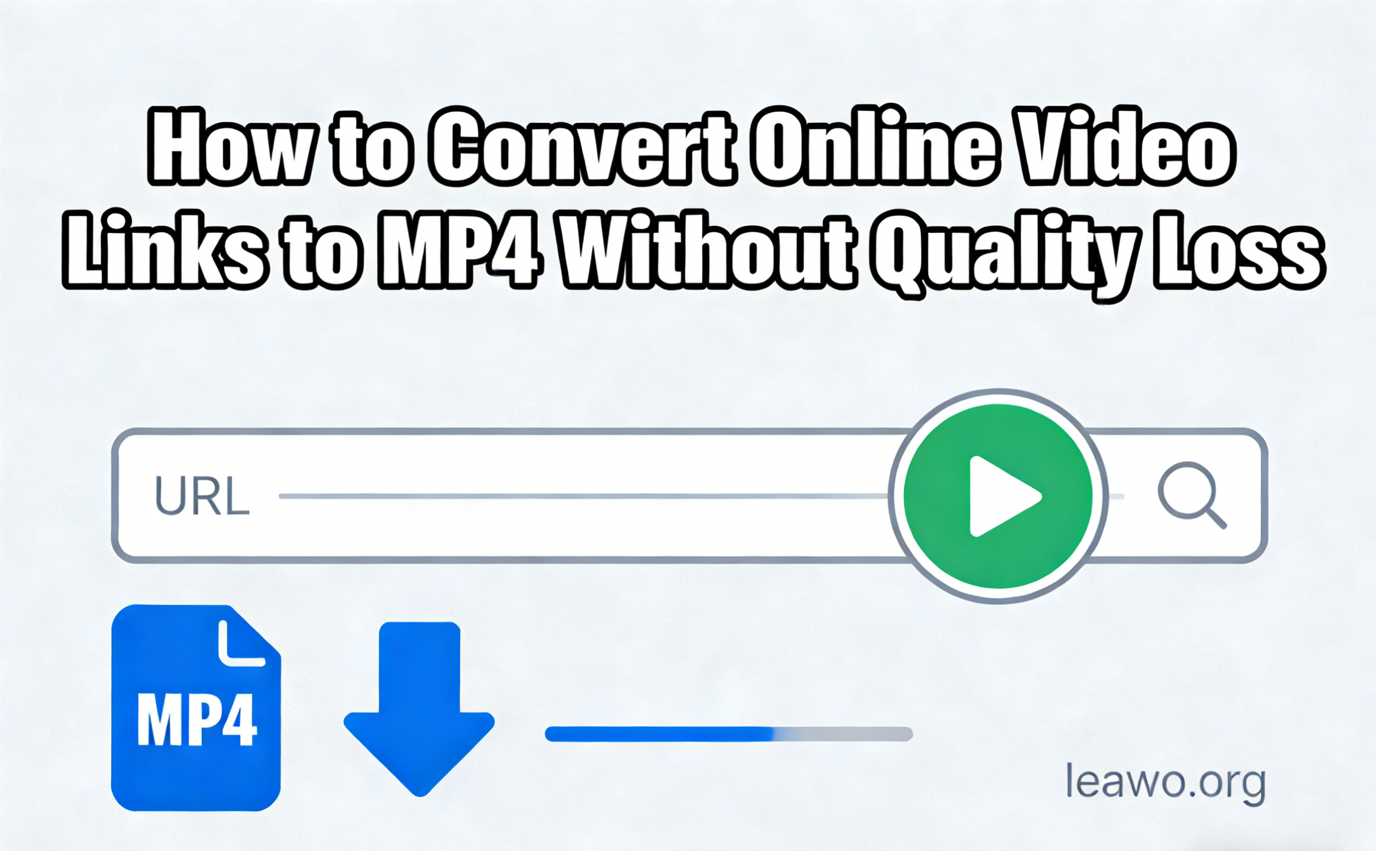
Do you want to save online videos for offline viewing? Converting video links to MP4 format is the best solution. MP4 files work on almost all devices. They keep good quality while maintaining smaller file sizes. This guide shows you three simple methods to convert any video link to MP4 without losing quality.
What Types of Video Links Can You Convert?
You can convert many types of video links to MP4 format. Most common video platforms support conversion. Here are the main types:
Streaming Platform Links: YouTube, Vimeo, and Dailymotion videos work well. These platforms host millions of videos. You can download them easily with the right tools.
Social Media Links: Facebook, Instagram, and Twitter video links are convertible. TikTok and Reddit videos also work. These platforms use standard video formats.
Educational Platform Links: Coursera, Udemy, and Khan Academy videos can be saved. Many students need offline access to lessons. Converting links helps with learning on the go.
Direct Video URLs: Links ending in .mp4, .mov, or .avi are easiest. These are direct file links. They download faster than embedded videos.
Subscription Service Links: Platforms like Netflix and Amazon Prime have restrictions. Special tools are needed for these services. Regular downloaders may not work on protected content.
Different tools work better for different platforms. Some websites block downloads. Others allow it freely. Choose your tool based on the video source.
How to Convert Video Link to MP4 with a Desktop Downloader? (Best Overall)
Desktop downloaders offer the best quality and features. CleverGet is a top choice for converting video links to MP4. It supports over 1000 websites. The software maintains original video quality during conversion.
Key Features of CleverGet:
CleverGet downloads videos in up to 8K resolution. It supports batch downloading of multiple videos. The built-in browser makes finding videos easy. You can download entire playlists with one click. It converts videos to MP4, MKV, and other formats. The download speed is fast and stable.
Step-by-Step Guide:
First, download and install CleverGet on your computer. The installation takes only a few minutes. Open the program after installation completes.
Second, copy the video link you want to convert. Go to the website with your video. Right-click the video and select “Copy link address.”
Third, paste the link into CleverGet’s address bar. The program will analyze the link automatically. This takes a few seconds.
Fourth, choose your preferred quality and format. CleverGet shows all available options. Select MP4 as the output format. Pick the highest quality available.
Fifth, click the download button to start conversion. The video downloads to your chosen folder. You can watch the progress in real-time.
Additional Benefits:
CleverGet removes ads from downloaded videos. It saves subtitle files separately if needed. The software updates regularly with new features. Customer support helps with any issues. You can try it free before buying.
For streaming services, CleverGet offers specialized tools. The Netflix to MP4 downloader works perfectly for Netflix content. It bypasses DRM protection legally. You can save your favorite shows and movies.
How to Convert Video Link to MP4 with a Command-line Tool?
Command-line tools are powerful but require technical knowledge. FFmpeg is the most popular choice. It’s free and open-source. Developers and tech users prefer this method.
Installation Process:
Download FFmpeg from the official website. Extract the files to a folder on your computer. Add FFmpeg to your system PATH variable. This lets you run it from any folder.
Basic Conversion Steps:
Open Command Prompt or Terminal on your computer. Navigate to the folder with your video file. Type the FFmpeg command with proper syntax. Press Enter to start the conversion process.
The basic command looks like this: ffmpeg -i input.url -c copy output.mp4. Replace “input.url” with your video link. Replace “output.mp4” with your desired filename.
Advanced Options:
FFmpeg offers many customization options. You can change video resolution and bitrate. Audio settings are adjustable too. Compression levels can be modified for smaller files.
Limitations to Consider:
FFmpeg has a steep learning curve. You need to understand command syntax. Mistakes in commands cause errors. There’s no graphical user interface. Troubleshooting requires reading documentation. Most casual users find it too complex.
The tool doesn’t browse websites or find videos. You must provide direct video URLs. Some protected content won’t download. Updates require manual installation.
How to Convert Video Link to MP4 with a Chrome Extension?
Browser extensions offer quick convenience. Video DownloadHelper is a popular Chrome extension. It works directly in your browser. No separate software installation is needed.
Installation Steps:
Open Chrome Web Store in your browser. Search for “Video DownloadHelper” in the search bar. Click “Add to Chrome” button. Confirm the installation when prompted.
How to Use It:
Navigate to the webpage with your video. Play the video to activate the extension. The extension icon lights up when detecting videos. Click the icon to see download options.
Select MP4 format from the available choices. Choose your preferred video quality. Click download to save the file. The video saves to your Downloads folder.
Features:
Video DownloadHelper detects videos automatically. It supports multiple video formats. The interface is simple and user-friendly. Downloads start with just two clicks.
Limitations:
Browser extensions have restricted capabilities. They can’t download from all websites. Some platforms block extension access. Quality options may be limited. Large videos download slowly through browsers.
Extensions use browser resources. Too many extensions slow down Chrome. Privacy concerns exist with some extensions. They may collect browsing data. Always read permissions carefully before installing.
Updates depend on extension developers. Some extensions stop working after site changes. Premium features often require payment. Free versions have download limits.
Conclusion
Converting video links to MP4 is simple with the right tool. Desktop downloaders like CleverGet offer the best quality and features. They support the most websites and formats. Command-line tools like FFmpeg suit technical users. Browser extensions provide quick but limited solutions.
Choose your method based on your needs. For regular downloading, invest in quality software. For occasional use, browser extensions work fine. For advanced control, learn command-line tools.
Always respect copyright laws when downloading videos. Only download content you have permission to save. Personal use is generally acceptable. Sharing downloaded content may be illegal.
Start with a free trial before buying software. Test different tools to find your favorite. Good conversion tools save time and maintain quality. Your offline video library awaits.
For More Update and Stories Visit: Info Records