 Sophia Hart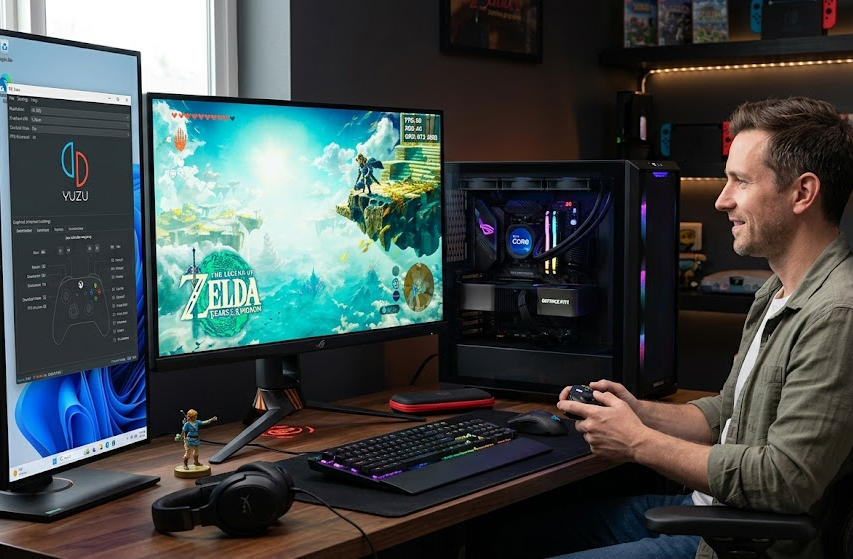
You can play Nintendo Switch games on PC with modern emulators, and you can often get better graphics, smoother frame rates, and flexible controls than on the console. Emulators like Yuzu and Ryujinx let you run Switch games on a capable Windows PC, tweak visuals, and map controllers to suit your play style. With the right hardware and settings, you can enjoy Switch games on PC with improved performance and higher-resolution visuals.
This guide walks you through what you need, which emulators work best, and how to tune settings so games run smoothly. Follow the steps here to check your PC, install an emulator, and optimize graphics and performance without unnecessary hassle.
Key Takeaways
- Check that your PC meets recommended specs before trying Switch emulation.
- Choose a well-supported emulator and configure controls for comfort.
- Optimize graphics and performance settings to get smooth gameplay.
Essential PC Requirements for Switch Emulation
You need a capable CPU, a modern GPU with good driver support, and enough RAM and storage for game files and shader caches. Your operating system and drivers must be up to date to avoid compatibility and performance issues.
Hardware Compatibility
Your CPU matters most for many Switch emulators. Aim for a recent Intel Core i5/i7 or AMD Ryzen 5/7 CPU with strong single-core performance. Emulation often uses a few fast cores rather than many slow ones, so clock speed and IPC are key.
Your GPU handles graphics upscaling, shader compilation, and any resolution boosts. Use an NVIDIA GTX/RTX or AMD RX-series GPU with at least 4–6 GB VRAM for 1080p; 8+ GB helps for higher resolutions. Integrated GPUs can run light titles but will struggle with demanding games.
Fast storage improves load times and shader cache generation. Use an SSD (NVMe preferred) for game files and emulator caches. A minimum of 16 GB RAM is a practical baseline; 32 GB reduces swapping when running background apps.
Required Operating Systems
Emulators like Yuzu and Ryujinx support Windows, Linux, and macOS to varying degrees. Windows 10/11 (64-bit) provides the broadest support, best driver availability, and easiest setup for GPU features and Vulkan/OpenGL drivers.
On Linux, choose a recent distribution and install up-to-date Mesa or proprietary drivers. You may need extra steps for Vulkan runtime and controller mappings, but performance can match Windows if drivers are current.
macOS support is more limited. Some emulators run on macOS but expect fewer features and possible performance gaps. If you use macOS, confirm the emulator explicitly supports your macOS version and GPU.
Recommended System Specifications
Minimum (playable for many titles):
- CPU: Intel Core i5 (8th gen) or Ryzen 5 (3000 series)
- GPU: GTX 1050 Ti / RX 560 or better
- RAM: 16 GB
- Storage: 256 GB SSD
- OS: Windows 10 (64-bit) or modern Linux
Recommended (smooth 1080p to 1440p):
- CPU: Intel Core i5-10400 / Ryzen 5 3600 or better
- GPU: GTX 1660 Super / RTX 2060 / RX 5600 XT or better
- RAM: 16–32 GB
- Storage: 500 GB NVMe SSD
- OS: Windows 10/11 (64-bit) with latest drivers
High-end (stable 4K, mods, and heavy shader caches):
- CPU: Intel i7/i9 or Ryzen 7/9 (high single-core clocks)
- GPU: RTX 3070 / RX 6800 or better with 8+ GB VRAM
- RAM: 32 GB
- Storage: 1 TB NVMe SSD
Keep GPU drivers, Vulkan runtimes, and emulator builds updated. That prevents crashes and improves performance more than marginal hardware upgrades.
Popular Switch Emulators and Their Features
You’ll learn which emulators run the most games, the hardware they need, and how they differ in accuracy, performance, and compatibility. Expect clear facts on setup, updates, and common use cases.
Overview of Yuzu
Yuzu focuses on speed and cutting-edge features. It often leads in performance for many commercial titles, using multicore CPU threading and GPU shader caches to reduce stutter. You will get options for upscaling, docked/handheld resolution changes, and shader pre-caching to smooth gameplay.
Yuzu supports mods, texture packs, and custom controller mapping. It needs a fairly modern CPU and GPU to run demanding games at stable frame rates. Watch for project changes and legal notices, because official support and availability can change over time.
Exploring Ryujinx
Ryujinx emphasizes compatibility and accuracy. It tends to run a wide library of games with fewer graphical glitches on entry-level hardware compared to some rivals. You will find a simpler UI and conservative default settings that prioritize stability.
Ryujinx offers resolution scaling, input remapping, and a plugin-friendly design for things like controller profiles. It uses less aggressive shader patching, so you may need to wait for shaders to compile during first runs. Ryujinx updates frequently and has strong community support for troubleshooting.
Key Differences Between Top Emulators
- Performance vs accuracy: Yuzu often gives higher FPS with advanced performance features. Ryujinx favors compatibility and fewer visual errors.
- Hardware needs: Yuzu typically demands more powerful GPUs and CPUs for top settings. Ryujinx runs acceptably on mid-range machines.
- User controls: Yuzu provides more experimental graphics options and mod tools. Ryujinx keeps defaults simple and stable.
- Game support: Both run thousands of titles, but compatibility varies by game. Check per-game compatibility lists before spending time on setup.
- Community and updates: Yuzu has fast feature releases; Ryujinx issues steadier, conservative updates. You should pick the one that matches your game list and hardware.
Setup and Installation Process
You will install an emulator, add Switch system files, and prepare game files. Follow each step carefully and only use files you legally own.
Downloading Emulator Software
Pick a reputable emulator: Ryujinx or Yuzu. Go to the official site or GitHub page to download the latest stable build for Windows, macOS, or Linux.
Install or extract the emulator to a folder you control. On Windows, run the installer or unzip and create a desktop shortcut. On macOS or Linux, follow the project’s install notes and grant executable permissions if needed.
Check system requirements: a modern multi-core CPU (Intel i5/Ryzen 5 or better), 8–16 GB RAM, and a recent GPU with up-to-date drivers. Install the latest GPU drivers before running the emulator.
Enable optional components: for better performance, enable API options like Vulkan if your GPU supports it. Keep the emulator version updated; developers fix bugs and add performance improvements often.
Configuring Firmware and Keys
Emulators need Switch firmware and product keys to boot games. These files are not included with emulators and must come from your own Switch.
Dump the firmware and prod.keys from your Switch using a homebrew tool such as Lockpick_RCM or TegraRcmGUI. Follow trusted guides to dump files safely. Place firmware files (Update and Firmware folders) in the emulator’s designated system directory.
Import prod.keys into the emulator’s keys settings. In Ryujinx or Yuzu, open File → Open Keys or the System menu and point to the keys file. Confirm the emulator recognizes the keys by checking the system info page.
Keep these files private and offline. Incorrect keys or corrupted firmware will cause crashes or boot failures.
Game File Preparation
Use only legally obtained game dumps from your own Switch cartridges or eShop purchases.
Dump games as NSP, XCI, or in a folder-format depending on your dumping tool. For large titles, consider converting NSP to a folder or using compressed formats supported by the emulator to save disk space.
Verify game integrity with checksums or by loading the title in the emulator’s game list. Place game files in a dedicated folder and add that folder to the emulator’s game directory settings so titles appear automatically.
For better performance, enable shader cache and precompile shaders when available. Keep save files backed up and use the emulator’s save export/import if you switch machines.
Optimizing Performance and Graphics
Focus on the exact settings that affect resolution, GPU load, and input. Change render resolution, vsync, and shader cache first, then tune frame smoothing and controller latency.
Customizing Graphics Settings
Set the render resolution to match your monitor or 1.5x–2x native Switch resolution for a balance between sharpness and FPS. Higher scales give clearer images but raise GPU use. If your GPU is weaker, use 1x or 1.5x and enable integer scaling when available.
Turn off or lower anti-aliasing if you need FPS. Use post-processing only for screenshots; effects like SSAO and bloom can cost frames. Force anisotropic filtering to 8x for better texture clarity with little performance cost on most GPUs.
Enable a shader cache and precompile shaders when possible. This cuts stutter during gameplay. Pick Vulkan if your GPU supports it, since it usually offers lower overhead than OpenGL on modern drivers.
Enhancing Frame Rates
Prioritize CPU and GPU balance: close background apps and set the emulator process to high priority if you have spare cores. On multicore CPUs, enable multicore or asynchronous shader options in the emulator to let different threads handle CPU-side tasks.
Use frame limiters and adaptive V-Sync to avoid tearing without forcing full VBLANK, which can hurt FPS. If the emulator supports frame resampling or frame skipping, prefer light frame interpolation for small gains; heavy skipping makes gameplay feel jagged.
Overclocking GPU or CPU gives gains but only do it if you know your cooling and stability limits. Keep drivers updated and use power profiles that allow sustained performance. Monitor temps and FPS while you test each change.
Controller Configuration
Map inputs to match the Switch layout: left/right stick, A/B/X/Y, L/R, ZL/ZR, plus and minus buttons. Use controller profiles for each game to avoid remapping every time. Many emulators accept Pro Controller and Joy-Con input natively or via emulated Pro Controller mode.
Set dead zones for analog sticks to prevent drift. Small dead zones (0.05–0.12) work well for most modern controllers. If motion controls are required, bind them to gyro-capable controllers or map gyro to mouse/keyboard as supported.
Enable input polling at the highest stable rate your controller supports. For Bluetooth controllers, use a wired connection to reduce latency if you see input lag. Save and export your controller profiles so you can reuse them on other systems.
Legal and Ethical Considerations
You need to know what is legal and what carries risk before you use Switch emulators. This section explains when backing up games is usually allowed and what piracy can cost you.
Legitimacy of Game Backups
Making a backup of a game you own can be legal in many places if you dump the files from your own Switch cartridge or digital purchase. You should use your own hardware and legally purchased games when creating game dumps. Keep original receipts or account records to prove ownership if ever questioned.
Using official tools or well-documented homebrew methods to extract game files reduces legal risk. Avoid downloading game files from unknown sites; those files often break copyright rules. Also check local laws: some countries allow private backups, others do not.
Risks Associated with Piracy
Downloading or sharing Switch game ROMs you don’t own is illegal in most countries and could lead to fines or legal action. Sites that host pirated games also risk spreading malware, which can harm your PC and personal data.
Distributing ripped games or using cracked keys increases your legal exposure. Game publishers actively pursue large-scale piracy and sometimes individual infringers. If you want to avoid these risks, only run dumps you made from copies you legally own and never upload or share them.
For More Update and Stories Visit: Info Records